Can you collapse or hide buckets in Microsoft Planner?
A Planner board with lots of buckets gets crowded fast. Planner can't collapse or hide buckets. Here are the workarounds that do work, and how to collapse columns in Heliview.
Twelve buckets on one board, and this week you only work in three. The rest sit in between, and you keep scrolling sideways to reach “Review”. You want to fold those other columns away for a while.
Can Planner collapse buckets?
No. Planner has no button to collapse or hide a bucket, including in the new Planner. In Microsoft’s list of keyboard shortcuts, collapsing only applies to the list of plans in the left pane. For buckets on the board it doesn’t exist.
What Planner does collapse is the block of completed tasks under a bucket. The new Planner hides completed tasks by default, and on Microsoft Q&A users report that the block folds shut again after scrolling.
Three workarounds in Planner
1. Drag buckets you rarely use to the right. They’re still there, just out of view. The downside is that the order now depends on what’s busy this week, for everyone in the plan.
2. Rename a bucket to “Archive”. Move finished or parked tasks there so the other buckets get shorter. Deleting a bucket is also possible, but it deletes the tasks in it too.
3. Filter on what you need now. A filter on label, assignee or due date doesn’t remove buckets, but it does make them shorter. Useful when you only want your own tasks.
All three change the board for the whole team. Move a bucket for your own overview and it moves for your colleagues as well.
Collapsing columns in Heliview
In Heliview you collapse a column into a narrow strip. The name stays readable and the task count sits on top. Only your board changes. Your Planner plans stay as they are.
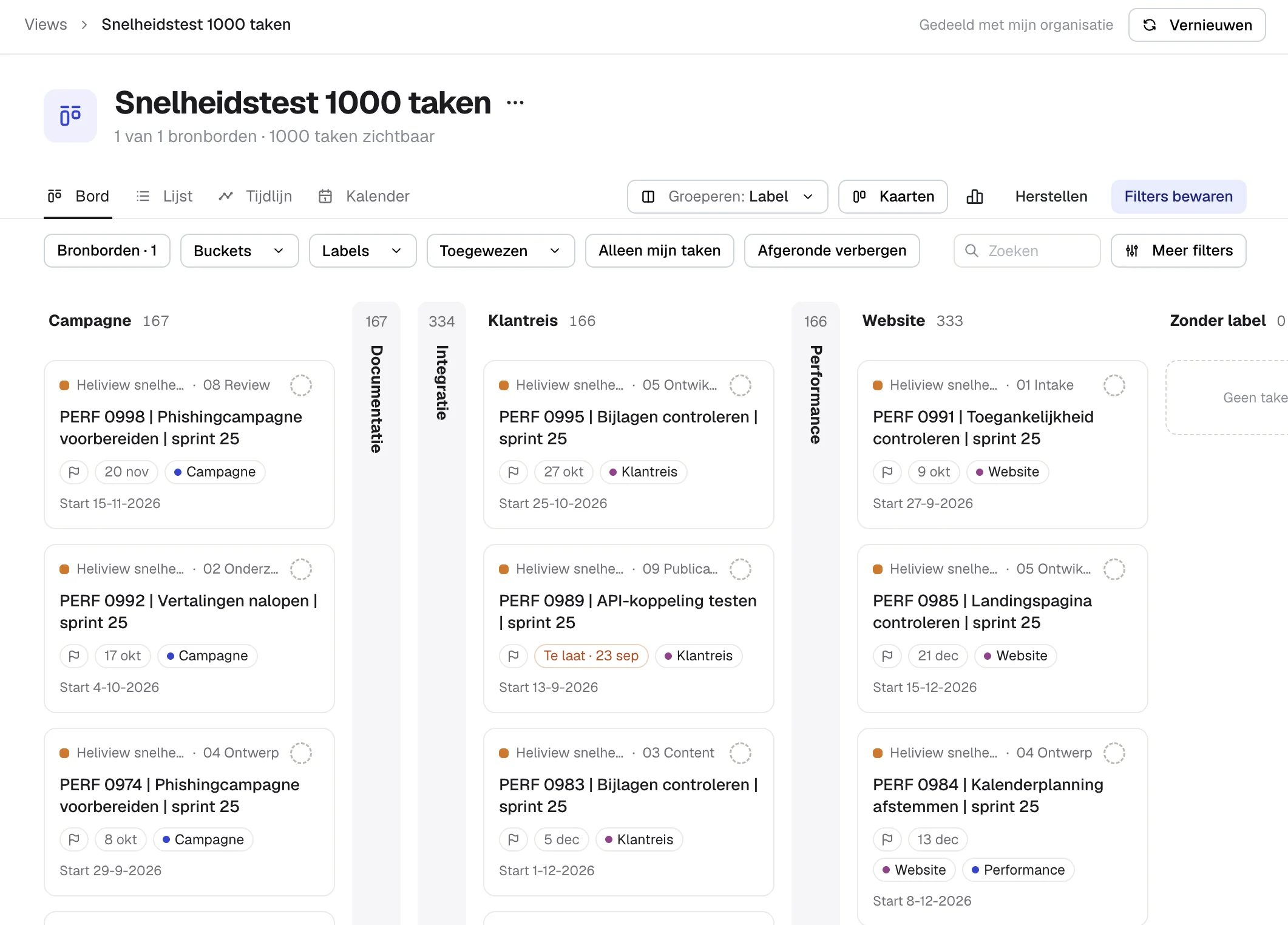
It also works when you group by something other than bucket. Group by progress, collapse “not started” and “completed”, and you’re left with one wide column of everything in progress.
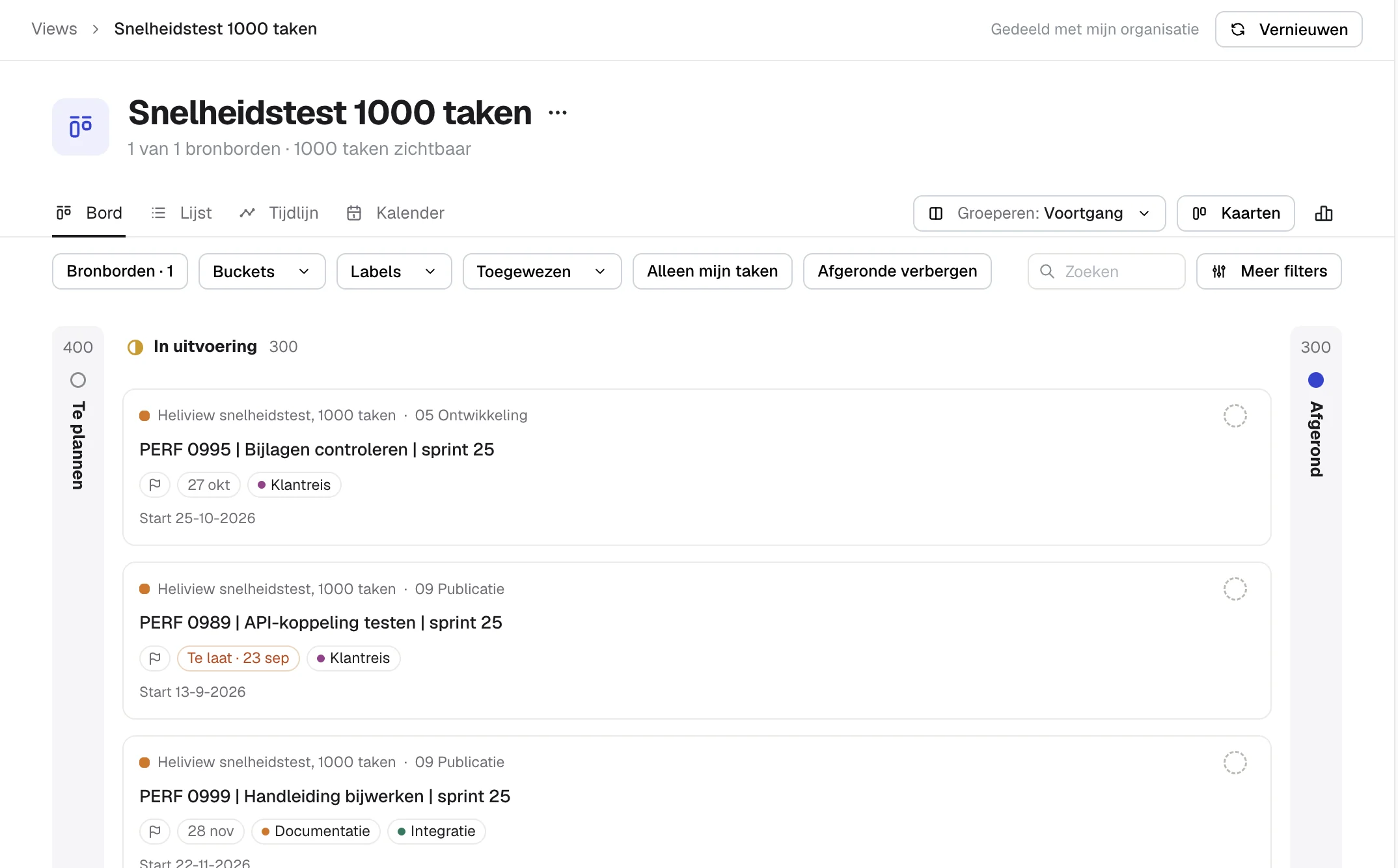
Sometimes you want completed tasks gone altogether. For that, the filter bar has a button to hide completed tasks.
Because a Heliview view can combine several Planner plans, collapsing works across plans too. Group by label and collapse the labels that don’t matter today, across all your plans at once. Want one plan that holds everything? Read how to build a master plan from all your Planner plans.
Looking for what one person has across those plans? See how to see all tasks assigned to someone.
Sources
- Keyboard shortcuts in Microsoft Planner, Microsoft Support
- Where to find completed tasks in the new Planner?, Microsoft Q&A
- Can you hide buckets in Planner?, Plansmanage