How to build a master plan from all your Planner plans: 4 options compared
Want one plan with every task from your teams? You can copy tasks with Power Automate, build a portfolio, keep a central list or use a view. Here's what each option costs you.
“Can I make one master plan that pulls in the tasks from all our plans?” That question shows up again and again on Microsoft’s forums. There’s no button for it. There are four ways to get close, and each has a catch.
1. Copy tasks with Power Automate
You build a flow that creates a task in a master plan whenever a task appears in a source plan. The catch is in the Planner connector, which has three triggers: a new task is created, a task is assigned to me, and a task is completed. There’s no trigger for an updated task.
When someone moves a due date in the source plan, the copy keeps the old date. You can build a nightly flow that compares everything again, but then you’re tracking task IDs between plans. On Microsoft Q&A, true two-way sync is described as unreliable.
Good for: a simple feed of new tasks, when the master plan is read-only.
2. A portfolio in Planner Premium
A portfolio gathers plans in one place, with a status overview per plan and a roadmap. Creating one needs Planner and Project Plan 3 ($30 per user per month in the US), and only premium plans fit. Your teams’ basic plans can’t be added.
Good for: project organizations already running premium plans. More in Planner portfolios: what you need.
3. A central SharePoint list
Some organizations track every task in one Microsoft List and stop using Planner as the source. Flows move tasks back and forth. You get one place with columns and filters, but your teams no longer work in the plans they know, and the flows end up on one person’s desk.
Good for: a fixed department that values a register over a board.
4. A view instead of a copy
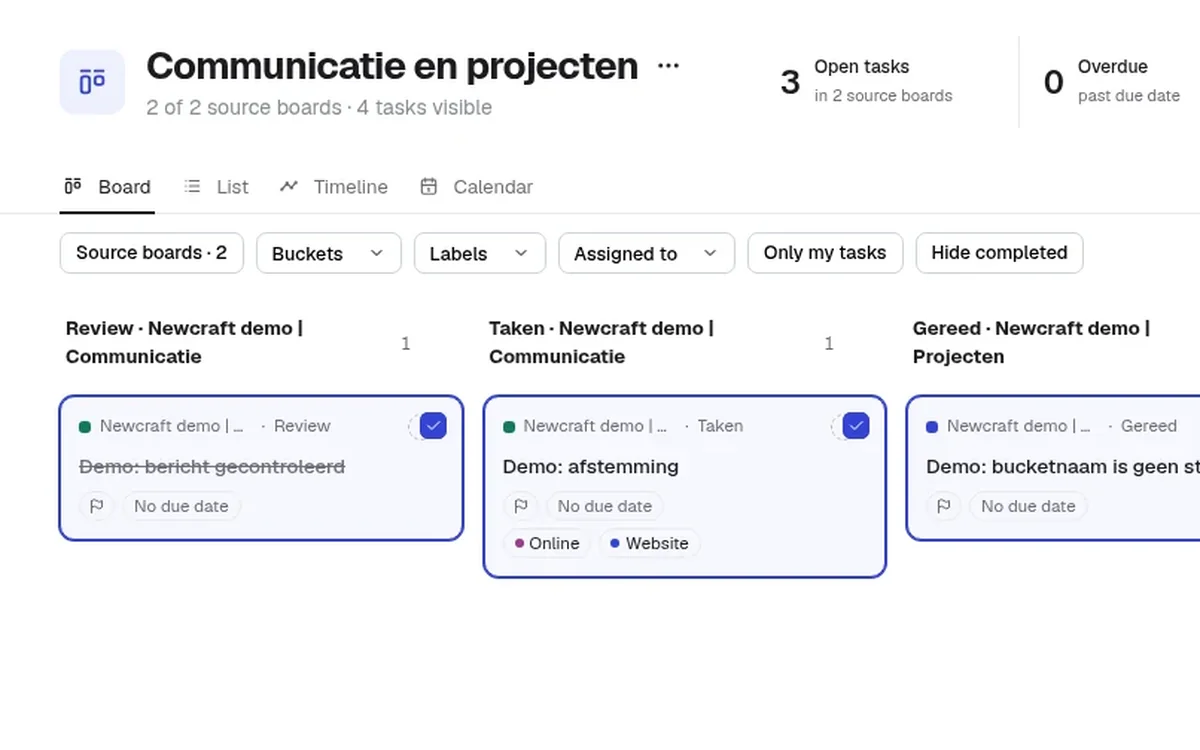
You can also turn it around. Let each team work in its own plan and use a view that reads all of them. Nothing gets copied, so there’s nothing to keep in sync.
That’s how Heliview works. You pick the plans you want together and give the view a name.
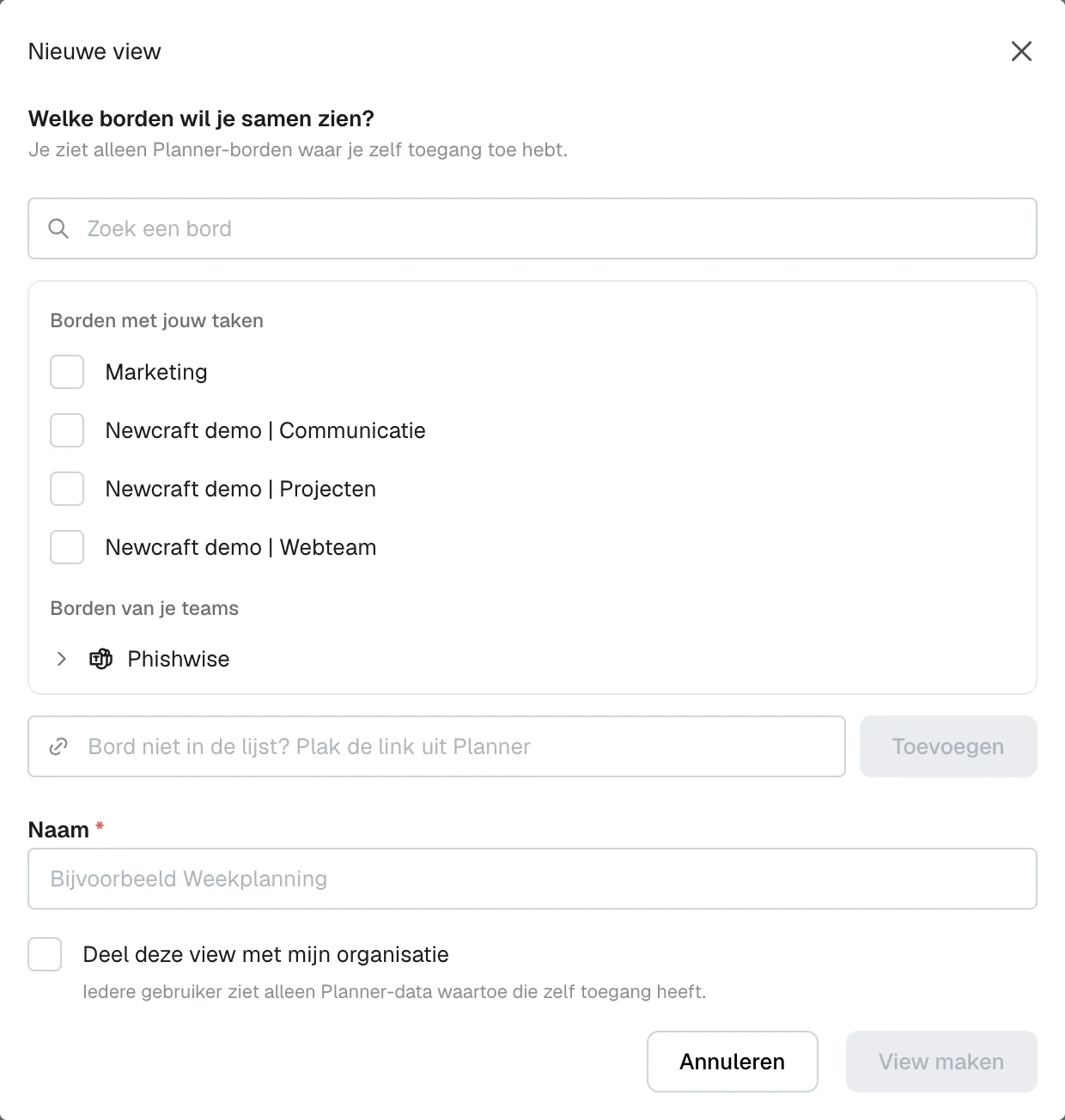
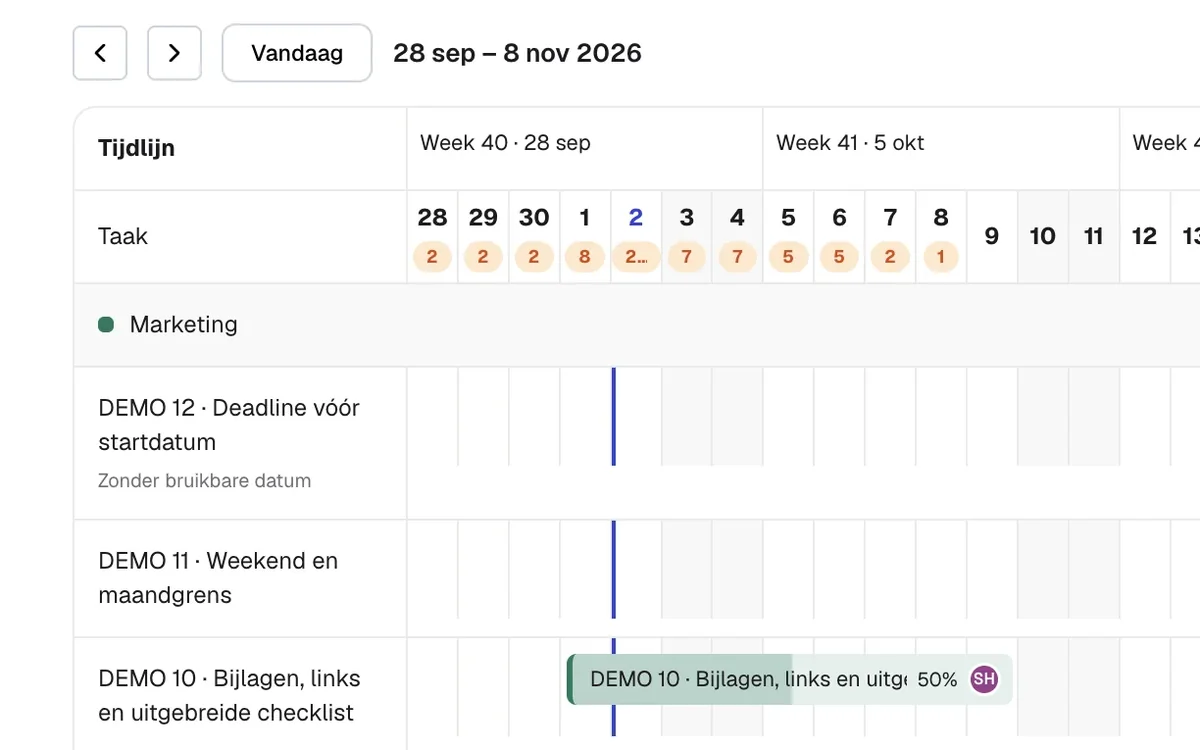
The view shows tasks as a board, list, timeline or calendar. A changed due date shows up as soon as you open or refresh the view. Plan not in the list? Paste its link from Planner to add it.
Good for: teams working in basic Planner plans, with a coordinator who needs to see all of it.
Which one to pick
| Option | Up to date | Upkeep | License |
|---|---|---|---|
| Power Automate copy | New tasks yes, changes no | Maintaining flows | Planner connector is part of Microsoft 365 |
| Portfolio | Yes, premium plans only | Low | Plan 3 to create |
| SharePoint list | As good as your flows | High | Part of Microsoft 365 |
| Heliview view | Yes, reads the plans live | Low | €99 to €299 per month, unlimited users |
If you mainly want to know what one person has across plans, read how to see all tasks assigned to someone. For monthly trends instead of a daily task list, see what a Planner dashboard in Power BI takes.
Sources
- Planner connector: triggers and limits, Microsoft Learn
- Creating a Master Planner for all Planners, Microsoft Q&A
- Manage multiple plans with portfolios, Microsoft Support
- Microsoft Planner plans and pricing, Microsoft