Bulk edit Planner tasks across multiple plans at once
Planner can only bulk edit tasks inside one plan. Here's how to give tasks on several Planner plans a new due date, owner or label in one go.
The launch slips by a week. Ten tasks on three plans need a new due date, and two of them move to a different colleague. In Planner, you open three plans and update them one plan at a time.
What Planner can do
Since 2025, Planner lets you edit several tasks at once. You open a basic plan in Grid view, select tasks in the task name column and change them together. Microsoft lists assigning, priority, progress, and start and due dates. Users on Microsoft Q&A report that it doesn’t work in premium plans.
That saves a lot of clicks inside one plan. With tasks on three plans, you do it three times: open the plan, filter, select, edit.
Across plans in Heliview
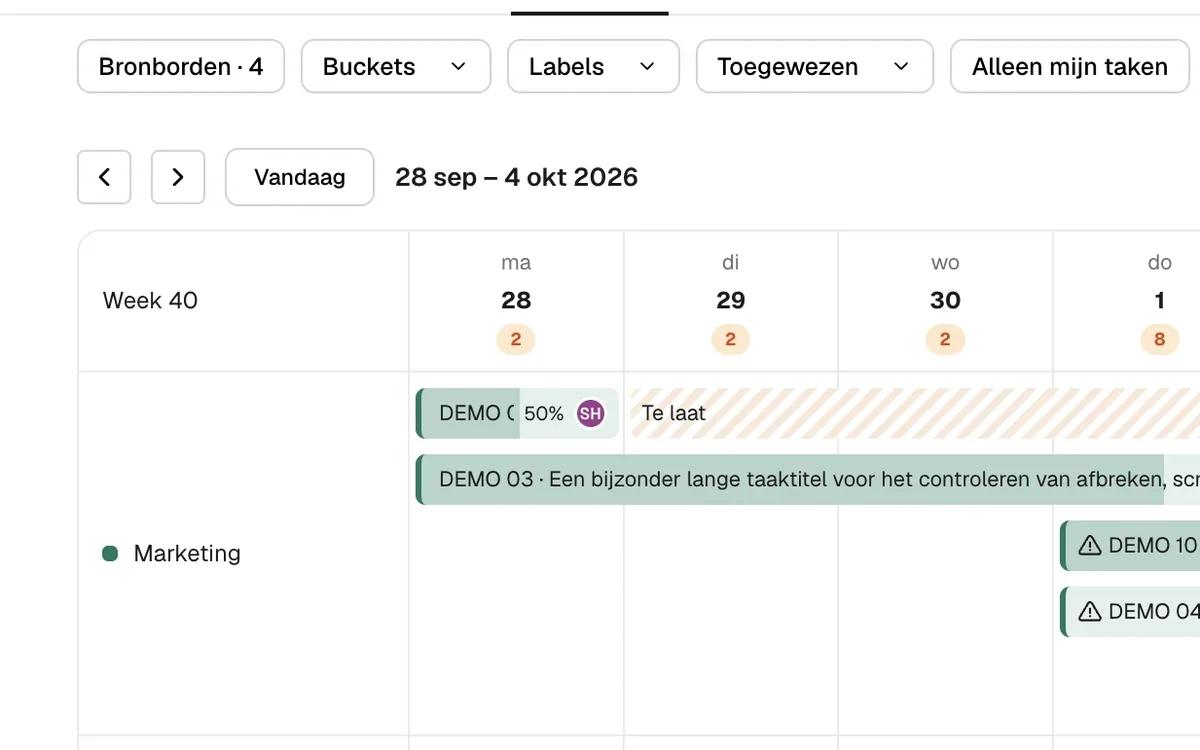
Heliview combines several Planner plans into one view. In that view you select tasks from all of those plans and change them in one go.
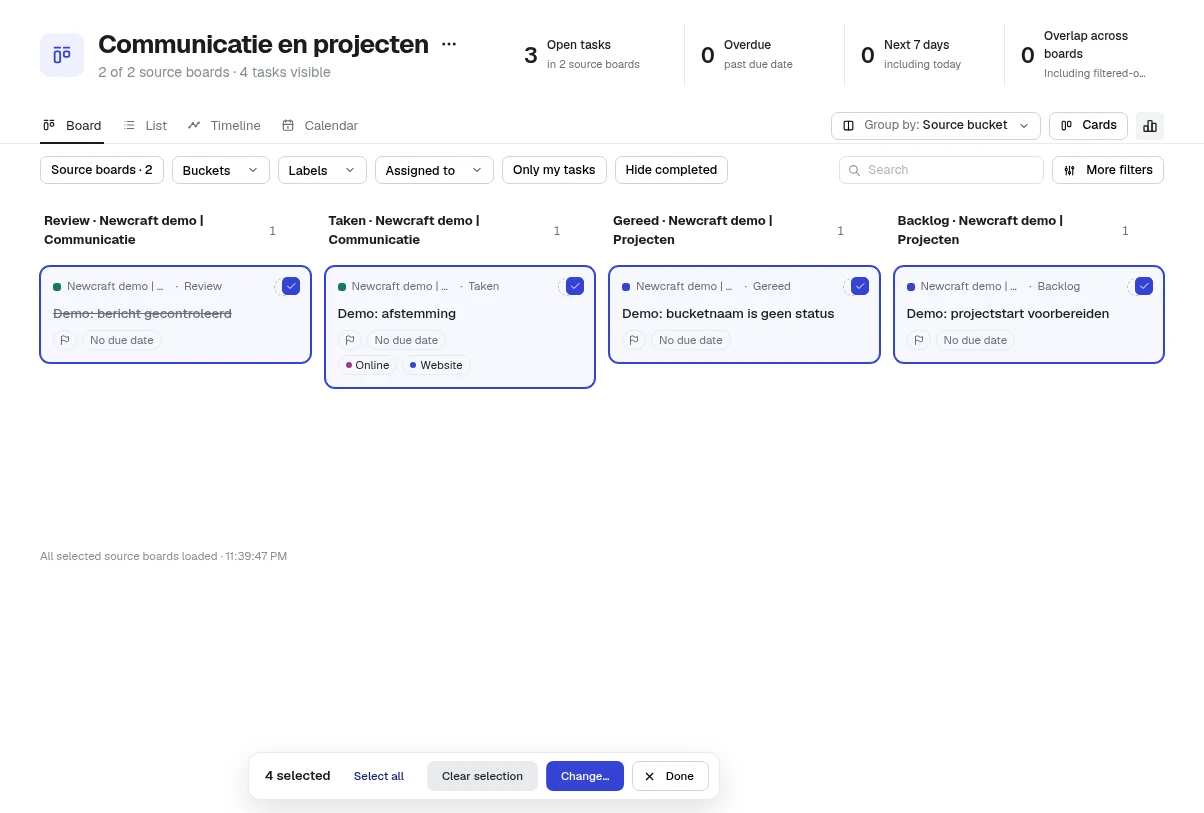
- Open the view as Board or List and click Select.
- Tick up to 50 tasks, from whichever plan they’re on.
- Click Change… and pick what to update.
- Review the preview and confirm. Afterwards you see per task whether it worked.
What you can change
- Progress
- Priority
- Due date, or clear the due date
- Assign or remove a person
- Add or remove a label
Heliview matches labels by name. If the label is called “Campaign” on all three plans, Heliview adds it on all three. If a plan doesn’t have that label, Heliview skips the task and the preview tells you why.
You see the changes first
Before Heliview writes anything to Planner, you see how many tasks change and which ones it skips, with the reason. Heliview writes the change to Planner only after you confirm. Then Heliview shows the result for each task.
Heliview writes with your own Microsoft permissions. If you can’t change a task in Planner, you can’t change it in Heliview either. If a colleague changed a task in Planner in the meantime, Heliview leaves their change alone.
One thing to know: Heliview can’t undo a bulk change. Read the preview before you confirm.
Which plan and which Planner plans
Bulk editing comes with the 10 boards plan (€149 per month) and the Unlimited plan (€299 per month), excluding VAT, with unlimited users. On the 5 boards plan you view tasks but don’t edit them. You can try Heliview free for 7 days. See pricing for the details.
Heliview works with basic Planner plans and doesn’t support premium plans.
Read next
- How to build a master plan from all your Planner plans
- How to see all tasks assigned to someone across Planner plans
- Can you collapse or hide buckets in Microsoft Planner?
Sources
- Microsoft Planner gets bulk editing feature, Neowin
- Bulk editing tasks in Microsoft Planner, Microsoft Q&A