Microsoft Planner in Power BI: what a dashboard takes
Power BI has no built-in connector for basic Planner plans. Compare the Graph API and Power Automate routes, license costs and refresh limits before you build.
You can get Microsoft Planner data into Power BI, but you build the pipeline yourself. Power BI has no built-in Planner connector for the basic plans your teams use in Teams. If you only need a live overview of tasks across plans, Heliview shows several Planner plans in one view without that build.
Does Power BI have a Planner connector?
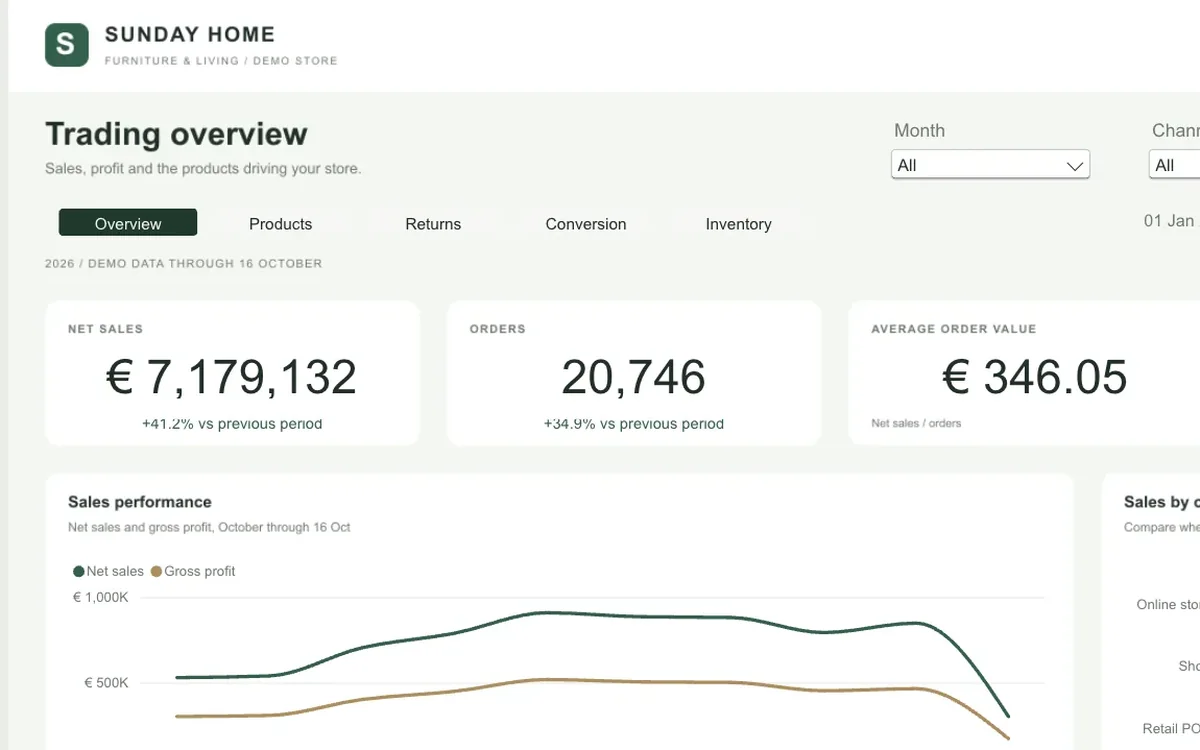
No. Power BI has no built-in connector for Microsoft Planner. Microsoft does offer a Power BI template for projects, but it reads premium plans through Dataverse and needs a Planner and Project Plan 3 or Plan 5 license. For basic plans in Teams, that template doesn’t apply.
Three ways to get Planner data into Power BI
For basic plans, teams usually take one of these routes:
- Microsoft Graph API. You fetch the tasks per plan with the Web connector in Power BI. Someone has to set up the connection, the permissions and the lookups that turn IDs into plan, bucket and user names.
- Power Automate. A flow writes tasks to a SharePoint list or an Excel file, and Power BI reads that file. The result is only as good as the flow. The Planner connector has no trigger for a changed task, so you need another way to pick up updates.
- A paid third-party connector, such as CData or FluentPro.
Who can open the report
Sharing a report takes a paid Power BI license. The free version lets you build reports for yourself, not share them. Power BI Pro costs $14 per user per month and Premium Per User $24, paid yearly. If ten team leads need the dashboard, all ten need Pro, unless your organization already has Premium or Fabric capacity.
How current the data is
A semantic model on shared capacity (Pro) refreshes on schedule at most 8 times a day. On Premium, Premium Per User or Fabric capacity, you can schedule up to 48. A task that gets a new due date at 10:05 won’t show up in the dashboard right away. That’s fine for a monthly report. For “what’s due today?”, it’s too slow.
When Power BI is the right choice
Power BI is strong when you want trends: how many tasks get completed per month, how long tasks stay open, how teams compare over a quarter. Those questions are about history and numbers, and a dashboard answers them well.
Day to day, a team lead needs something else: the tasks themselves, a click to open one, a filter on a colleague and a list of what’s due this week. That’s a task overview.
A live task overview across plans
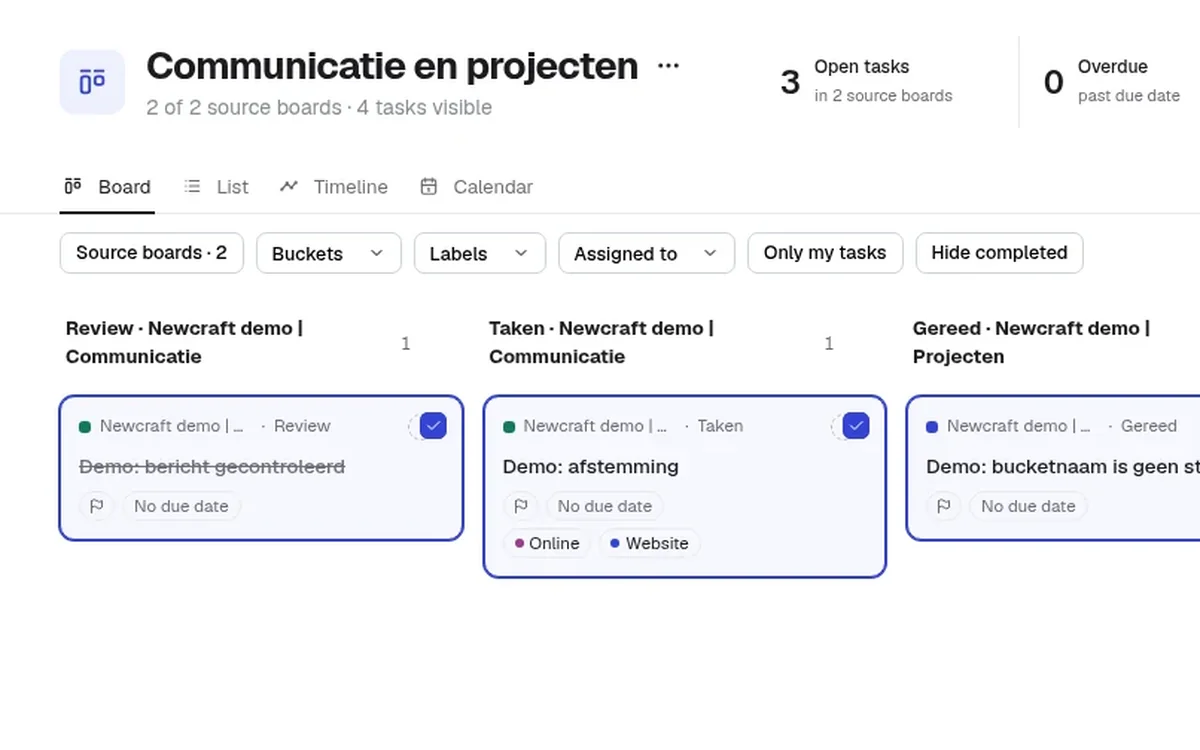
Heliview reads your basic Planner plans at the moment you look. You pick which plans belong together and see their tasks as a board, list, timeline or calendar. Filters on assignee, bucket, label, due date, progress and priority stay saved per view.
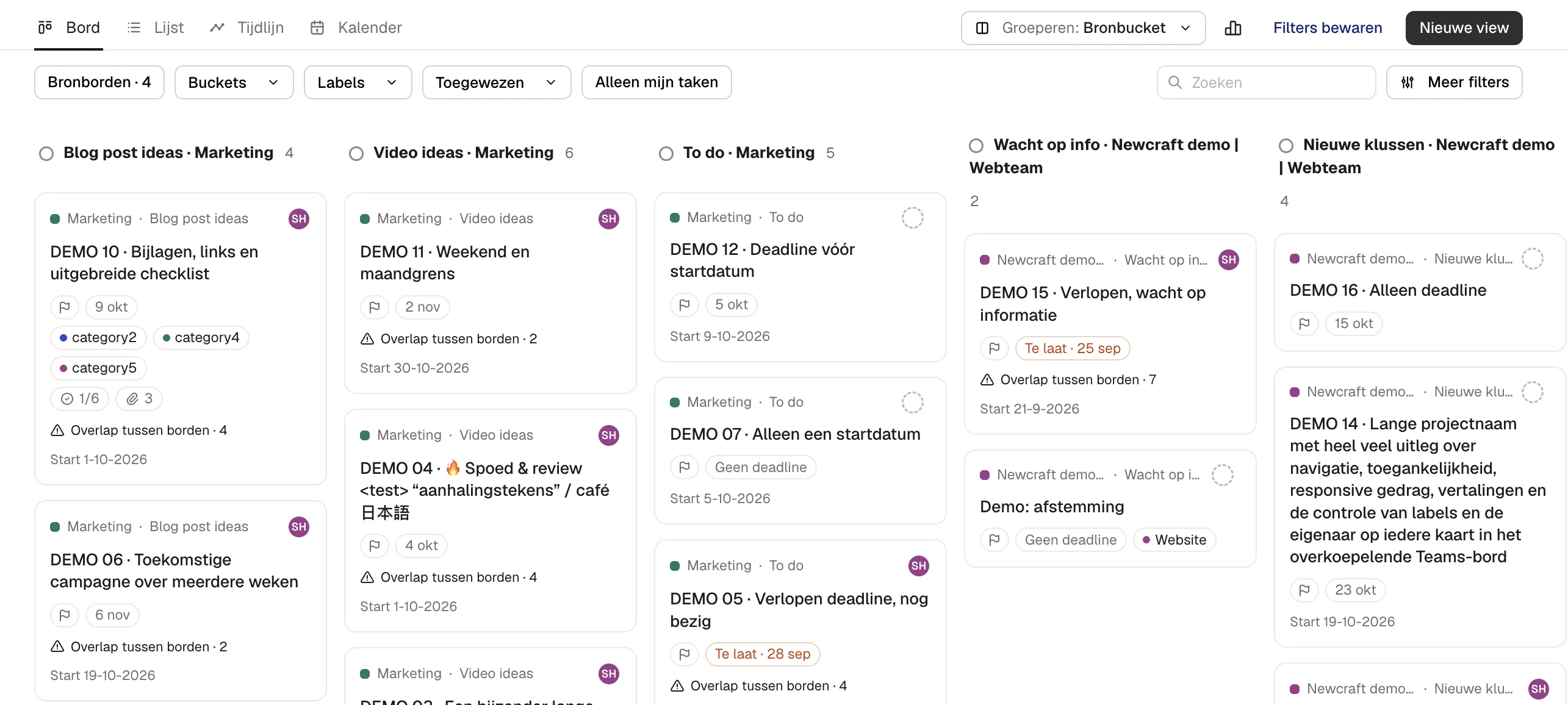
Everyone who opens the view signs in with their own Microsoft work account and sees only what they can already open in Planner. You pay per number of boards, with unlimited users. See Heliview pricing.
Want one big plan instead? Four ways to build a master plan compares the options. Thinking about portfolios? Read what Planner portfolios need first.
Sources
- Getting data from Microsoft Planner in Power BI, Microsoft Fabric Community
- Use Power BI Desktop to connect with your project data, Microsoft Support
- Power BI pricing, Microsoft (US prices, October 2026)
- Data refresh in Power BI, Microsoft Learn
- Planner connector for Power Automate, Microsoft Learn