Microsoft Planner portfolio vs plan: what you need
A Planner plan holds tasks, a portfolio groups premium plans. See the license a portfolio needs, what it shows and how to get an overview of basic plans.
Microsoft’s own answer to “how do I see several plans at once?” is the portfolio. Before you switch it on, you want to know three things: which license it takes, which plans it accepts and what you see on screen afterwards. For the basic plans most teams use, Heliview puts several Planner plans in one view.
Plan vs portfolio in Microsoft Planner
A plan is where a team keeps its tasks, in buckets, with assignees and due dates. A portfolio sits one level up: it groups several premium plans and tracks them as projects, with status, progress and key dates per plan. You work in a plan. You use a portfolio to watch how a set of plans is doing.
What a portfolio does
A portfolio collects several plans in one place and gives you two views. The Plans tab lists each plan with its project manager, percent complete, start and finish dates and status. The Roadmap tab puts the plans on a timeline with milestones and key dates.
That’s an overview at project level. You see how each plan is doing. Who is working on which task in which week isn’t something it lists.
The two requirements
Creating a portfolio needs Planner and Project Plan 3. Microsoft’s US list price is $30 per user per month. With Planner Plan 1 ($10) you can view portfolios, but not create them. Plan 5 no longer appears on Microsoft’s pricing page.
Only premium plans fit. Microsoft’s support page says portfolios give “a consolidated view of all your premium plans and tasks; basic plans aren’t currently supported.” The plans your teams use in Teams today are almost always basic plans. To use a portfolio, those would have to be set up as premium plans, and everyone who plans in them needs a premium license.
What a Heliview view does differently
Heliview works with the basic Planner plans your teams already have. You pick which plans belong together and Heliview puts their tasks into one view.
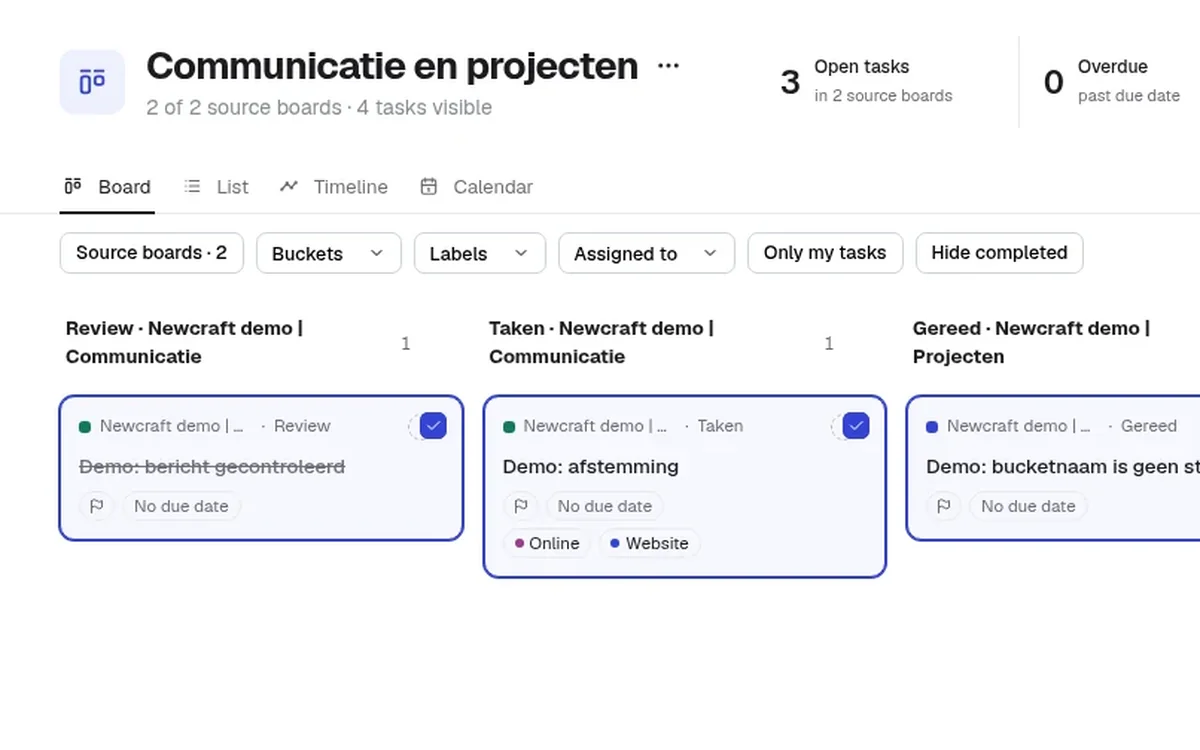
That view is a task overview. You look at it as a board with columns, a list, a timeline or a week or month calendar. You filter by plan, bucket, label, assignee, due date, progress and priority. You also see where the same person has tasks on different plans in the same period.
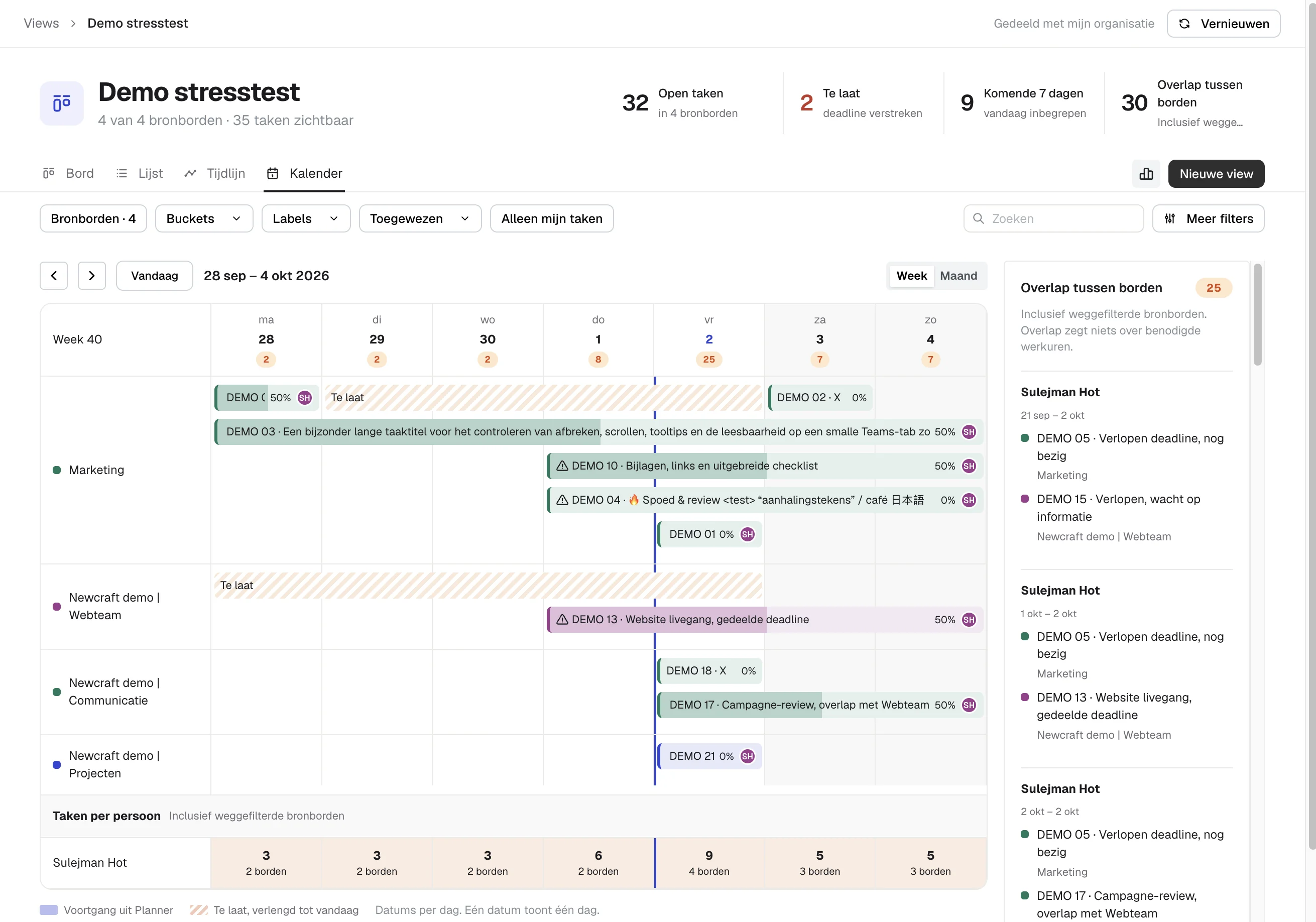
Heliview uses the Planner permissions of the person looking. Share a view, and a colleague sees only the tasks they can already open in Planner. The tasks stay in Planner. There’s more on that on the Heliview page.
How to choose
| Situation | Better fit |
|---|---|
| Your projects already run as premium plans and project managers have Plan 3 | Portfolio |
| You need status and milestones per project for a steering group | Portfolio |
| Your teams work in basic Planner plans in Teams | Heliview |
| You want to see per person and per week what’s happening across plans | Heliview |
| You don’t want to buy a license for everyone who looks | Heliview, you pay per number of boards |
The two can live side by side. An organization with a few large premium projects and many small team plans can give the steering group a portfolio and the team leads a Heliview view.
What it costs
A portfolio needs Plan 3 for whoever creates it and at least Plan 1 for whoever views it, per person per month. Heliview costs €99 per month for 5 boards, €149 for 10 boards and €299 for unlimited boards, with unlimited users. See Heliview pricing.
Building a master plan with Power Automate is another route people try. The four options compared shows where it breaks. Weighing a premium license anyway? See Planner vs Planner Premium.
Sources
- Manage multiple plans with portfolios in Microsoft Planner, Microsoft Support
- Microsoft Planner plans and pricing, Microsoft (US prices, October 2026)